A custom logo is necessary for rebranding or making changes to the existing one for making any changes to your website. And if your website is WordPress-built, you can easily add a custom logo to your website by following some simple steps. But where to start? Don’t worry, you are going to know all the possible solutions to add a custom logo to your WordPress site. Take a look!

The logo carries out your brand identity towards your customers and helps to create brand value online. So for building up a unique identity, an interactive logo is a must-have thing for your website. The custom logo is essential when you want to change your website’s existing logo and make it more attractive for your site visitors. Incorporating a user-friendly and versatile logo maker in the redesign process can empower you to effortlessly create a visually appealing emblem that resonates with your brand’s essence.
This is true for rebranding by using a custom logo, and also when you have made any changes to the website environment and need to fit your logo for this. Either way, it is very important to use a custom logo. Let’s check out how to do that.
Learn More: WordPress Theme Identifier: How To Detect Which Theme A Site Is Using
How To Add A Custom Logo To Your WordPress Site?
It’s all about which WordPress theme you are using that will dictate how to add a custom logo to your WordPress site. In general, a flexible theme comes with the simple same steps that you are going to see follow. But exceptions can happen. Now let’s check out the steps you should follow to add a custom logo on WordPress:
Method 1: Manually Add A Custom Logo On WordPress Site
Suppose you have used the default theme of WordPress what you can do is to first navigate to your WordPress dashboard Appearance →Customize.
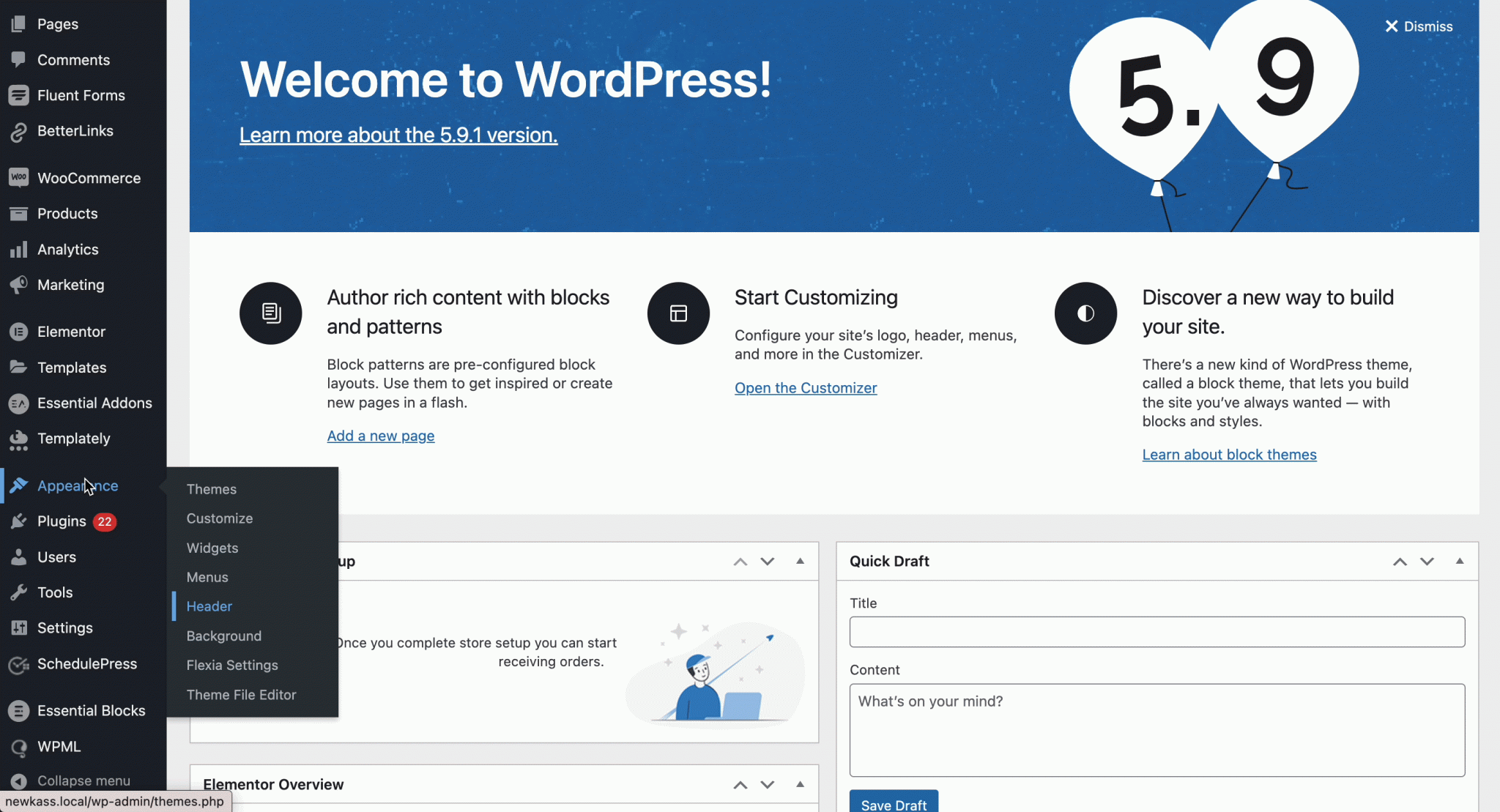
Now click on the “Site Identity” section and upload your custom logo to make the changes.
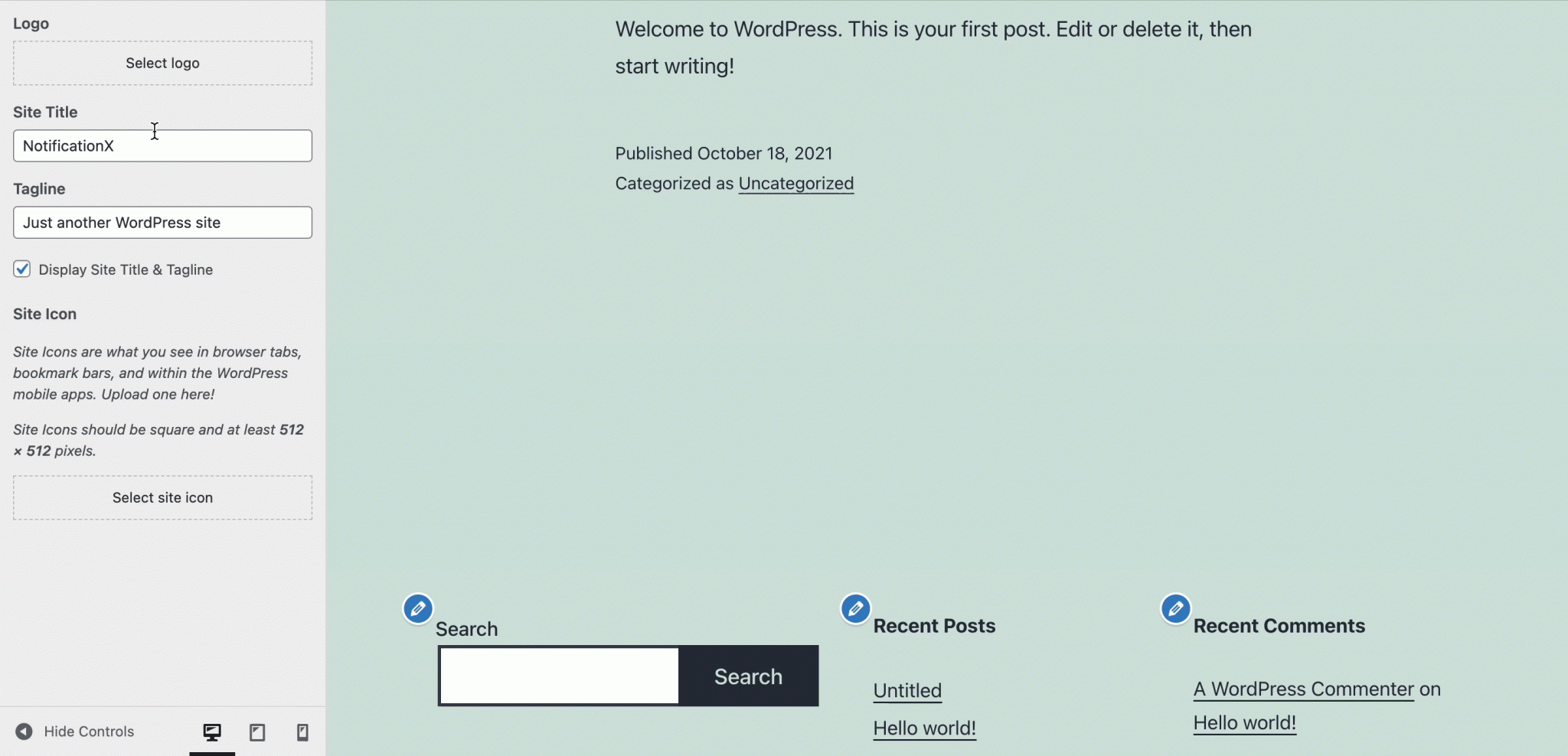
For instance, to make things more clear, we are using a different theme named Flexia as a WordPress theme. A similar process, go to your WordPress dashboard Appearance →Customize.
Afterward, click on the Global →Site Info section that comes with this Flexia theme. There you will get the option ‘Upload Primary Logo’ or ‘Upload Sticky Logo’ to add a custom logo to your website. Your logo image can be in a gif, JPEG, or PNG format. If you want you can change the size, width, and height of your logo and make the changes.
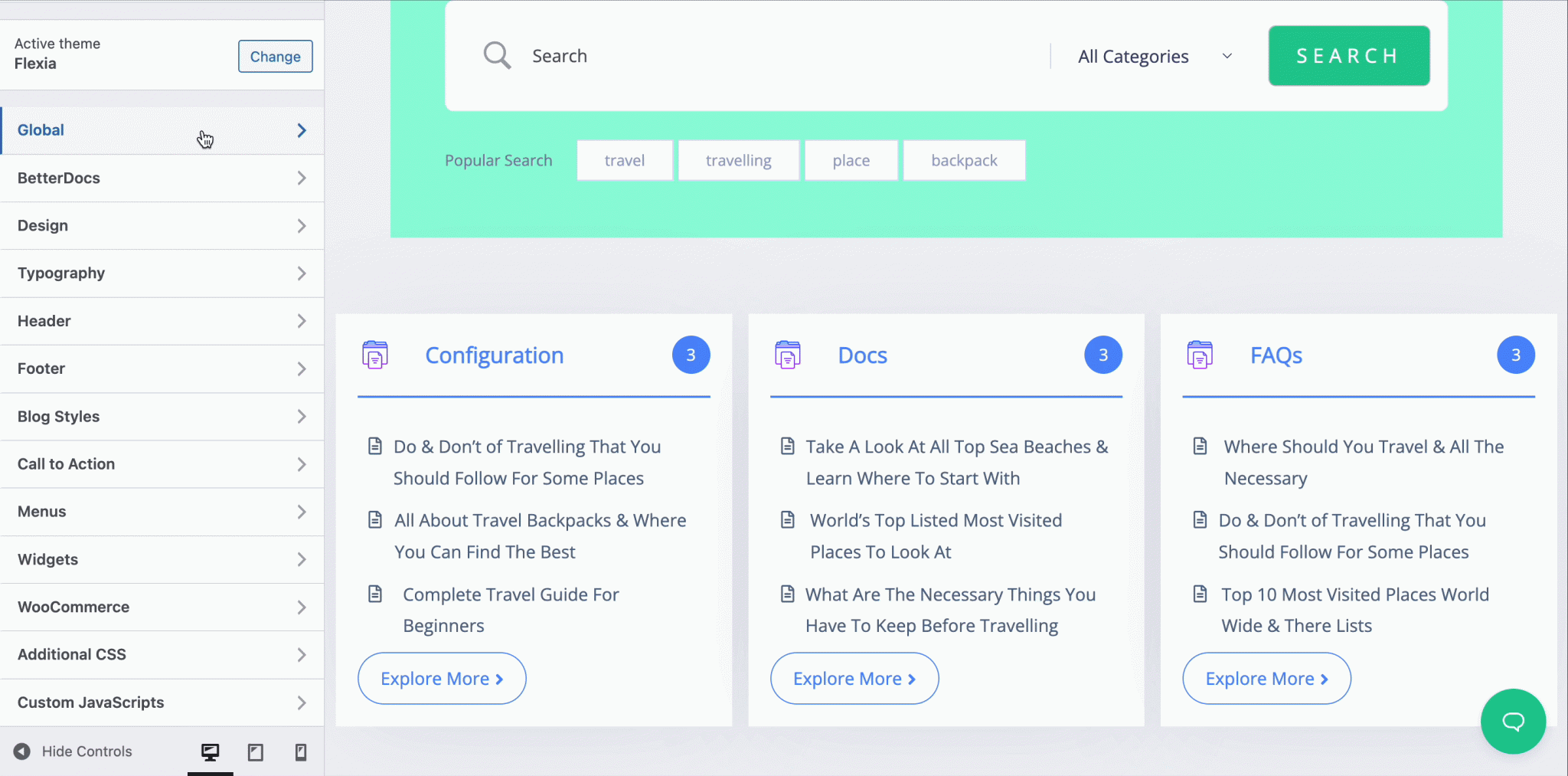
After making all the changes, hit the ‘Publish’ button and visualize your custom logo on WordPress.
Meanwhile, some WordPress themes come with an option called Theme Options to set up your custom logo on your WordPress site. These options are available under the Appearance menu in the WordPress dashboard. If you don’t see this option there to upload your logo, chances are high that your WordPress theme does not support this feature.
Top 5 Best FREE WordPress Themes for Elementor + Bonus Templates [2021]
Method 2: Configure Codes To Add A Custom Logo
If you want to add a custom logo that will match the theme can be done by adding add_theme_support(), and then be called in your theme using the_custom_logo(). A custom logo, but theme authors should use this function if they include a logo in their theme. You have to add the below code to your functions.php file.
add_theme_support( ‘custom-logo’ );
To add a custom logo to your WordPress site, you have to configure five parameters for passing along arguments to the add_theme_support() function using an array:
function themename_custom_logo_setup() {
$defaults = array(
‘height’ => 100,
‘width’ => 400,
‘flex-height’ => true,
‘flex-width’ => true,
‘header-text’ => array( ‘site-title’, ‘site-description’ ),
‘unlink-homepage-logo’ => true,
);
add_theme_support( ‘custom-logo’, $defaults );
}
If you want to know more about these functionalities and code you can check out this repository information to know all details.
Display Custom Logo To Your WordPress Site
You can now easily add a custom logo to your WordPress site and make the changes to attract your potential customers with your unique identity. Hope you find this blog helpful, now let us share your opinion by commenting below.
If you want to read more blogs like this subscribe to our blog and join our Facebook community for more details.